Thursday, February 19, 2015

MP Control Manager detected management point is not responding to HTTP requests. The HTTP status code and text is 404, Not Found.

When you get this error on MP:

MP Control Manager detected management point is not responding to HTTP requests.  The HTTP status code and text is 404, Not Found.

Possible cause: Management point encountered an error when connecting to SQL Server.
Solution: Verify that the SQL Server is properly configured to allow Management Point access. Verify that management point computer account or the Management Point Database Connection Account is a member of Management Point Role (msdbrole_MP) in the SQL Server database.

Possible cause:  The SQL Server Service Principal Names (SPNs) are not registered correctly in Active Directory
Solution:  Ensure SQL Server SPNs are correctly registered.  Review Q829868.

Possible cause: Internet Information Services (IIS) isn't configured to listen on the ports over which the site is configured to communicate.
Solution: Verify that the designated Web Site is configured to use the same ports which the site is configured to use.

Possible cause: The designated Web Site is disabled in IIS.
Solution: Verify that the designated Web Site is enabled, and functioning properly.

Possible cause: The MP ISAPI Application Identity does not have the requisite logon privileges.
Solution: Verify that the account that the MP ISAPI is configured to run under has not been denied batch logon rights through group policy.

For more information, refer to Microsoft Knowledge Base article 838891.

Solution: 

Run -Inetmgr open the default website --> Edit bindings and add All Unassigned.
Error will be fixed when it runs the next time.


Wednesday, February 4, 2015

SCCM 2012 R2 Remote Distribution Point (DP) Installation - Step By Step


Launch SCCM Console


Click Administration à Site Configuration à Right Click Server and Site System Roles à Create Site System Server  

Please Update FQDN under the name of server where Remote DP will be installed.
Click Next


Select System Roles Distribution Point


Select Check box Install and Configure IIS if Required by Configuration Manager
Click Next


Click Next

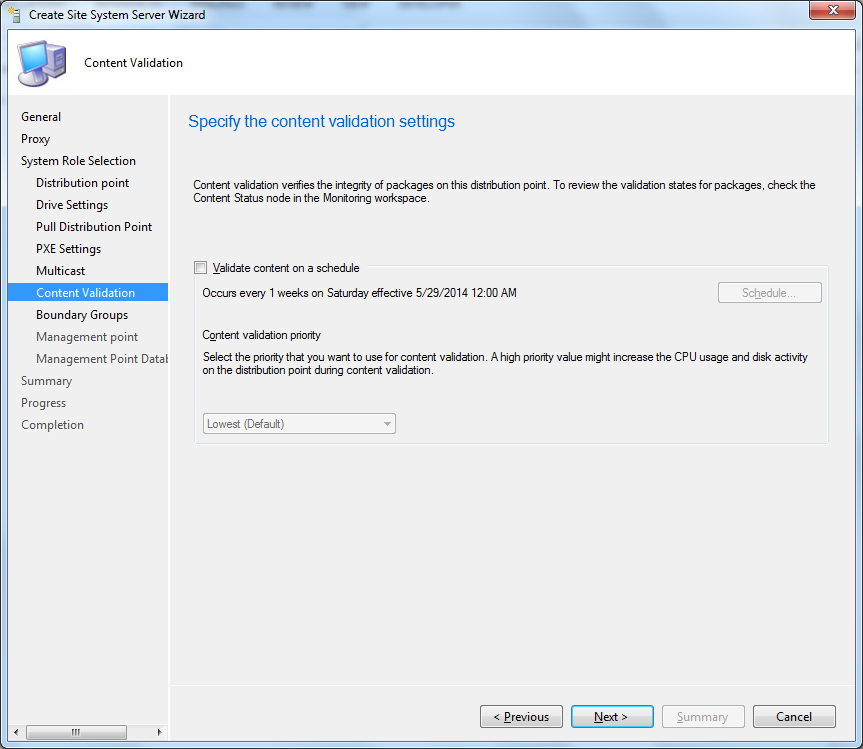
Click Next

Click Next

Click Next

Click Add


Select appropriate Boundary groups. Click Next and Close

Monitor Installation :-Check the Distribution Point Configuration Status in Monitoring and select Details

Check below files on target DP Server...


DP Configuration Settings

Select DP- Properties  Go to Rate Limits Tab. Control bandwidth by configuring Rate Limit if required.


Wednesday, January 28, 2015

Prerequisites for Site System Roles - SCCM 2012


Prerequisites for Site System Roles

 Site systems role pre-req are….

·         Install and configure IIS
o    Verify the following IIS components are installed


·         On the site server Install Dot Net  3.5.1 and activate “WCF Activation”
o    In Server Manager select Features, Add Features, Select .NET Framework 3.5.1, also select WCF Activation


·         Install BITS and Remote Differential Compression
o    In Server Manager click on Add Features, select BITS and RDC


·         Install Dot Net 4.0
·         For server performing the role of Software update point needs to have Windows Server Update Services (WSUS) 3.0 SP2 installed.
·         For Reporting services point, SQL Server Reporting Services installed and configured to use at least one instance for the reporting services point. The instance you use for SQL Server Reporting Services can be the same instance you use for the site database.
·         To support PXE on a distribution point that is on a computer remote from the site server, install Microsoft Visual C++ 2008 Redistributable
·         To support PXE or multicast, install and configure Windows role Windows Deployment Services (WDS)


Tuesday, January 6, 2015

How To Deploy Silverlight 5.1 using SCCM 2012 R2

How To Deploy Silverlight 5.1 using SCCM 2012 R2

Download latest version of Silverlight from Microsoft http://www.microsoft.com/silverlight/.

I have used version Microsoft Silver light 5.1.30514.0 for this.
The downloaded version of silver light will be in .exe format. Use 7-Zip to extract or just run the exe and check C:\dynamic folder(long file name in form of hash) created...check date modified. Look for silveright.msi file. Edit this .msi using Orca and navigate to Property and Product ID. This is required for detection method while creating an application in SCCM 2012 R2.

Do not use just .MSI. Its not complete setup, if you do you will not have some core package functionality like ..Silverlight upgrade etc..

Create an Application for Silverlight... follow the steps and choose Deployment type as Script Installer and create this using manual option for .EXE.

Command for install : Silverlight_5.1.exe /q

If you need to disable auto update, use --reg add HKLM\Software\Microsoft\Silverlight /f /v UpdateConsentMode /d 2

I have created a .bat file for this and created a package using Script Installer. It is simple and works well.

Silverlight_5.1.exe /q

reg add HKLM\Software\Microsoft\Silverlight /f /v UpdateConsentMode /d 2


Tuesday, December 30, 2014

SCCM 2012 Query based Collection- Computers with a specific BIOS versions

WQL for Creating CM 12 Dynamic collection for Bios versions.


I have used this for Lenevo Bios versions...

select distinct SMS_R_System.NetbiosName from  SMS_R_System inner join SMS_G_System_PC_BIOS on SMS_G_System_PC_BIOS.ResourceID = SMS_R_System.ResourceId where SMS_G_System_PC_BIOS.SMBIOSBIOSVersion like "GFET35WW (1.14 )" or SMS_G_System_PC_BIOS.SMBIOSBIOSVersion like "GFET45WW (1.24 )" or SMS_G_System_PC_BIOS.SMBIOSBIOSVersion like "GFET44WW (1.23 )" or SMS_G_System_PC_BIOS.SMBIOSBIOSVersion like "GFET43WW (1.22 )" or SMS_G_System_PC_BIOS.SMBIOSBIOSVersion like "GFET40WW (1.19 )" or SMS_G_System_PC_BIOS.SMBIOSBIOSVersion like "GFET39WW (1.18 )" or SMS_G_System_PC_BIOS.SMBIOSBIOSVersion like "GFET37WW (1.16 )" or SMS_G_System_PC_BIOS.SMBIOSBIOSVersion like "GFET36WW (1.15 )" or SMS_G_System_PC_BIOS.SMBIOSBIOSVersion like "GFET35WW (1.14 )" or SMS_G_System_PC_BIOS.SMBIOSBIOSVersion like "GFET28WW (1.07 )"

Corresponding query in  SQL will be..


select SMBIOSBIOSVersion0
FROM dbo.v_GS_PC_BIOS
where SMBIOSBIOSVersion0 Like 'GFET45WW (1.24 )' or SMBIOSBIOSVersion0 Like 'GFET44WW (1.23 )' or SMBIOSBIOSVersion0 Like 'GFET43WW (1.22 )' or SMBIOSBIOSVersion0 Like 'GFET40WW (1.19 )' or 

SMBIOSBIOSVersion0 Like 'GFET39WW (1.18 )' or SMBIOSBIOSVersion0 Like 'GFET37WW (1.16 )' or SMBIOSBIOSVersion0 Like 'GFET36WW (1.15 )' or SMBIOSBIOSVersion0 Like 'GFET35WW (1.14 )' or 

SMBIOSBIOSVersion0 Like 'GFET28WW (1.07 )'
ORDER BY SMBIOSBIOSVersion0 


Friday, December 12, 2014

Import already registered computers or Users in SCCM 2012 using a file to a collection

How to import already registered computers or Users in SCCM 2012 using a file a file to a collection. It’s easy to import a computers from a CSV file with NetBIOS name and MAC address but importing computer which are already registered to console is bit difficult. There are situations when a collection needs to be created and no query seems working in those situation a manually add resource option is left out which is time taking.

To automate/import registered computer to a collection using a file, I followed below steps which seems to be working for me…

Create list of computer which needs to be imported then have them comma separated using below steps and finally add resources to the collection.

The objective is to arrange it in a comma separated way so that it can be imported in a single shot rather doing one by one.
Output should be username01, username01 etc.
Now select the collection Right click à Add resources à Copy computer names (comma separated) under Name String Contains à SearchàSelect allàAddàOK.

Refresh the collection and should be populated with computers shortly.

Thursday, December 11, 2014

SCCM 2012 Report for Internet Explorer(IE) versions


If you looking for a reports for IE versions using SCCM. Please try Out of the Box reports, this is easy, accurate and reliable report i have found so far. I have tried custom reports as well.

Here are the steps..

Open SCCM Console Navigate to

Monitoring--> Reporting-->Reports --> Search--> Type "Computers with a specific file"

Double click the report Type "iexplore.exe" under file Name and click View report.

Export as excel and short it with file versions you need.

Thanks