Friday, April 17, 2015

SCCM 2012 List of Websites required for Software Update(SUP) Sync


SCCM 2012 List of Websites required for Software Update(SUP) Sync: Below sites are required to be allowed from Firewall to Sync with Microsoft Update.

If your organization does not allow the ports and protocols to be open to all addresses on the firewall between the active software update point and the Internet, you can restrict access to the following domains, so that WSUS and Automatic Updates can communicate with Microsoft Update:


Tuesday, April 14, 2015

SCCM 2012 Custom Query for Specific application installed on computers

SCCM 2012 Custom Query for Specific application installed on computers

select SMS_R_SYSTEM.ResourceID,SMS_R_SYSTEM.ResourceType,SMS_R_SYSTEM.Name,SMS_R_SYSTEM.SMSUniqueIdentifier,SMS_R_SYSTEM.ResourceDomainORWorkgroup,SMS_R_SYSTEM.Client from SMS_R_System where SMS_R_System.Name in (select distinct SMS_R_System.Name from  SMS_R_System inner join SMS_G_System_ADD_REMOVE_PROGRAMS on SMS_G_System_ADD_REMOVE_PROGRAMS.ResourceId = SMS_R_System.ResourceId where SMS_G_System_ADD_REMOVE_PROGRAMS.DisplayName = "Google Chrome")

Thursday, March 19, 2015

SCCM 2012 R2 CU4 Installation- Step-by-Step

SCCM 2012 R2 CU 4 Installation- Step-by-Step


To upgrade to SCCM 2012 R2 CU4, you must have at least 5.00.7958.1000 version.

Please download it from Microsoft https://support.microsoft.com/kb/3026739
It’s a hotfix so need to be requested. An email will be sent from microsoft with download link.
This link has details about bugs/fixes.
Run downloaded file  CM12-R2CU4-KB3026739-X64-ENU.exe on Standalone primary server.


Click Next

Accept the license term

Perquisites check should be all successful.

Check this and click next

Select Update DB and click Next

Check all and Click Next

Click Next

Click Next

Click Next

Click Install


Click Next

Click Finish

Please Check log here C:\Windows\Temp\CM12-R2CU4-KB3026739-X64-ENU.log

Client version should be 5.00.7958.1501 
Check the version to verify the install.


 Packages will be available here for deployment to Clients.


Verify registry on primary server: --- HKLM\Software\Microsoft\SMS\Setup\ key. 

Tuesday, March 3, 2015

SCCM 2012 Dynamic Collection Query for Computers by Model Number

Here is WQL for a hardware models...

select distinct SMS_G_System_COMPUTER_SYSTEM.Name, SMS_G_System_COMPUTER_SYSTEM.Model, SMS_R_System.LastLogonUserName from  SMS_R_System inner join SMS_G_System_COMPUTER_SYSTEM on SMS_G_System_COMPUTER_SYSTEM.ResourceID = SMS_R_System.ResourceId where SMS_G_System_COMPUTER_SYSTEM.Model like "XXXXXXXX" or SMS_G_System_COMPUTER_SYSTEM.Model like "XXXXXXX" or SMS_G_System_COMPUTER_SYSTEM.Model like "XXXXXX" or SMS_G_System_COMPUTER_SYSTEM.Model like "XXXXXXXX" or SMS_G_System_COMPUTER_SYSTEM.Model like "XXXXXXXX" or SMS_G_System_COMPUTER_SYSTEM.Model like "XXXXXXX"

Thursday, February 19, 2015

MP Control Manager detected management point is not responding to HTTP requests. The HTTP status code and text is 404, Not Found.

When you get this error on MP:

MP Control Manager detected management point is not responding to HTTP requests.  The HTTP status code and text is 404, Not Found.

Possible cause: Management point encountered an error when connecting to SQL Server.
Solution: Verify that the SQL Server is properly configured to allow Management Point access. Verify that management point computer account or the Management Point Database Connection Account is a member of Management Point Role (msdbrole_MP) in the SQL Server database.

Possible cause:  The SQL Server Service Principal Names (SPNs) are not registered correctly in Active Directory
Solution:  Ensure SQL Server SPNs are correctly registered.  Review Q829868.

Possible cause: Internet Information Services (IIS) isn't configured to listen on the ports over which the site is configured to communicate.
Solution: Verify that the designated Web Site is configured to use the same ports which the site is configured to use.

Possible cause: The designated Web Site is disabled in IIS.
Solution: Verify that the designated Web Site is enabled, and functioning properly.

Possible cause: The MP ISAPI Application Identity does not have the requisite logon privileges.
Solution: Verify that the account that the MP ISAPI is configured to run under has not been denied batch logon rights through group policy.

For more information, refer to Microsoft Knowledge Base article 838891.

Solution: 

Run -Inetmgr open the default website --> Edit bindings and add All Unassigned.
Error will be fixed when it runs the next time.


Wednesday, February 4, 2015

SCCM 2012 R2 Remote Distribution Point (DP) Installation - Step By Step


Launch SCCM Console


Click Administration à Site Configuration à Right Click Server and Site System Roles à Create Site System Server  

Please Update FQDN under the name of server where Remote DP will be installed.
Click Next


Select System Roles Distribution Point


Select Check box Install and Configure IIS if Required by Configuration Manager
Click Next


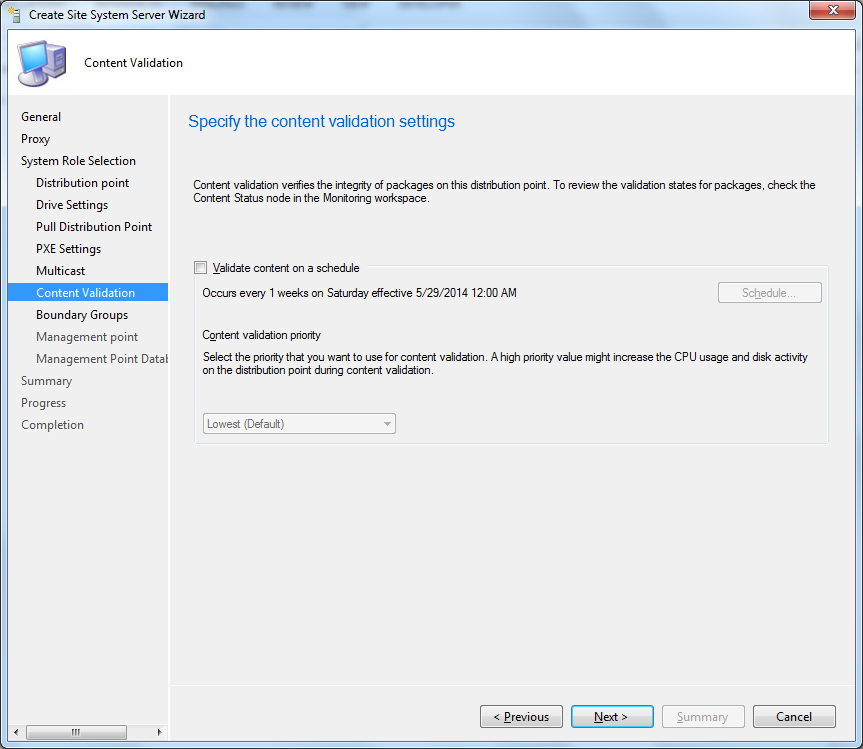
Click Next

Click Next

Click Next

Click Next

Click Add


Select appropriate Boundary groups. Click Next and Close

Monitor Installation :-Check the Distribution Point Configuration Status in Monitoring and select Details

Check below files on target DP Server...


DP Configuration Settings

Select DP- Properties  Go to Rate Limits Tab. Control bandwidth by configuring Rate Limit if required.


Wednesday, January 28, 2015

Prerequisites for Site System Roles - SCCM 2012


Prerequisites for Site System Roles

 Site systems role pre-req are….

·         Install and configure IIS
o    Verify the following IIS components are installed


·         On the site server Install Dot Net  3.5.1 and activate “WCF Activation”
o    In Server Manager select Features, Add Features, Select .NET Framework 3.5.1, also select WCF Activation


·         Install BITS and Remote Differential Compression
o    In Server Manager click on Add Features, select BITS and RDC


·         Install Dot Net 4.0
·         For server performing the role of Software update point needs to have Windows Server Update Services (WSUS) 3.0 SP2 installed.
·         For Reporting services point, SQL Server Reporting Services installed and configured to use at least one instance for the reporting services point. The instance you use for SQL Server Reporting Services can be the same instance you use for the site database.
·         To support PXE on a distribution point that is on a computer remote from the site server, install Microsoft Visual C++ 2008 Redistributable
·         To support PXE or multicast, install and configure Windows role Windows Deployment Services (WDS)